
Every Last Grain Fullscreen: Controls and Quick Fixes
Enable Every Last Grain fullscreen, learn the P and Esc controls, restore mouse look, and reduce browser lag so you can get back to clearing the sand.
UpdatedJump to
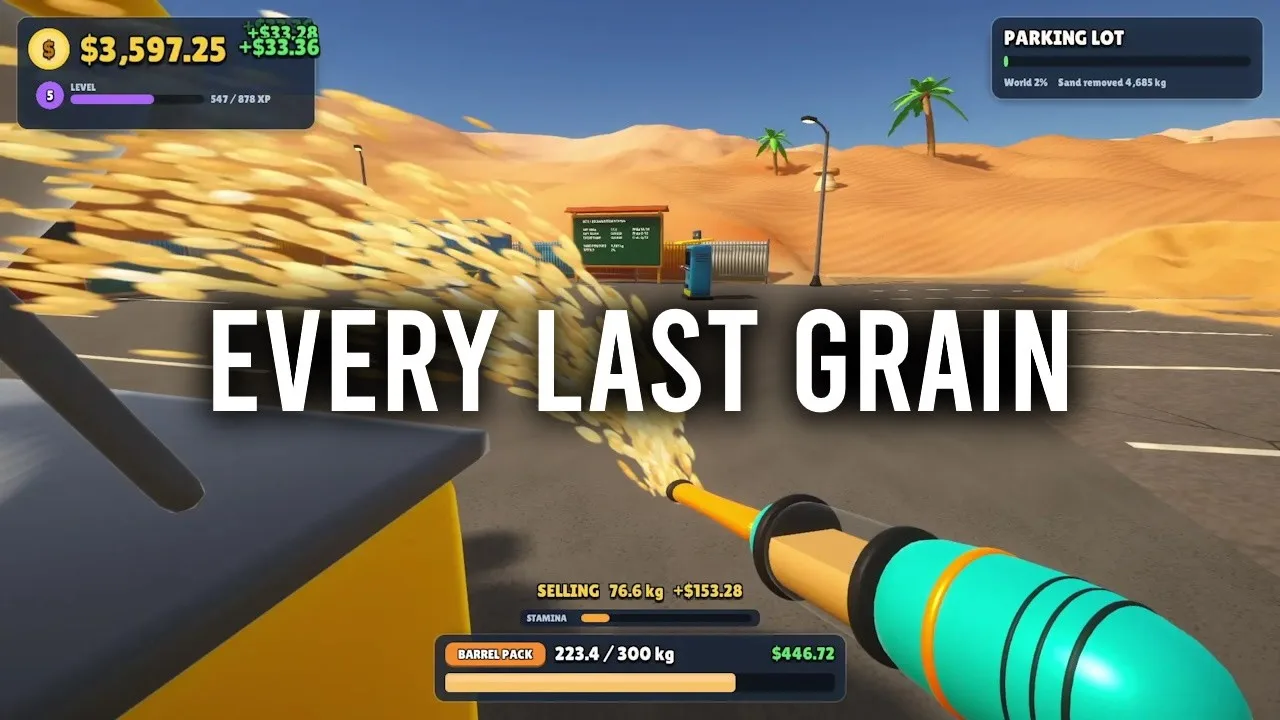
How to Enable Fullscreen
To enable Every Last Grain fullscreen, open the game on its official itch.io page, press P to open the menu, and select FULLSCREEN. Use a mouse and keyboard for the recommended setup. Remember P for the menu: Esc leaves fullscreen and closes open windows.
The important distinction is between opening the menu and leaving fullscreen. Pressing Esc when you want to change a setting takes you out of fullscreen instead. Keep P within reach for menu access during a digging session.
Fullscreen and Menu Controls Introduced in Update 2
| Action | Control | Result |
|---|---|---|
| Open the menu | P | Opens the game menu |
| Enter fullscreen | FULLSCREEN button in the menu | Switches the game to fullscreen |
| Leave fullscreen or close open windows | Esc | Leaves fullscreen and closes open windows |
| Save and return to the title screen | QUIT in the menu | Saves progress, leaves fullscreen, and returns to the title screen |
Open the Official Browser Version
Play the free Every Last Grain demo on itch.io. It is an HTML5 browser game built with Unity, with mouse and keyboard as its listed inputs. The demo takes place at Lot Edge, with an average session of about half an hour.

Since Update 12, the game runs only on its official itch.io page. Opening it through another website brings up a button directing you there. Follow that button, then use the in-game fullscreen option once you are playing.
If an older bookmark takes you to an embedded copy, replace it with the official page so your next session starts at the playable version.
Restore Mouse Look When the Cursor Gets Released
If the browser takes control of your mouse, click inside the game to look around again. The game displays a reminder when this happens.
Losing mouse control does not pause the game: it keeps running while the cursor is released. Press P when you need to pause or access the menu, rather than relying on the mouse leaving the play area.
Keep these actions separate while troubleshooting:
- Cannot turn the camera: Click inside the game to restore mouse look.
- Need the menu: Press P.
- Left fullscreen with Esc: Press P and select FULLSCREEN again.
These controls let you recover your view without quitting the session.
Reduce Browser Lag in Fullscreen
Update 9 introduced adaptive resolution, lighter rendering on high-resolution screens, and fewer shadows from small objects. The game adjusts its resolution to your machine to help keep play smooth.
If digging or camera movement still feels sluggish, switch to the lighter graphics option:
- Press P.
- Open SETTINGS.
- Select GRAPHICS.
- Choose LOW.
LOW received additional performance improvements in Update 9. Use that option when browser performance interrupts your digging, especially on a high-resolution display.
The settings menu also includes SOUND, GAME, and CONTROLS tabs, added in Update 3. SOUND has separate sliders for the vacuum and treasure ping, and you can turn the ping off. If the vacuum gets distracting during a longer session, lower its own slider while keeping the other sounds at the levels you want.
Keep the Digging Controls Handy
Once the screen and mouse are behaving, these are the controls you need around Lot Edge:
| Control | Action |
|---|---|
| W, A, S, D | Move |
| Mouse | Look around |
| Hold Shift | Sprint |
| Hold left mouse button | Dig |
| E | Use machines and pick up items |
| J | Open the journal |
| Q | Activate your capstone ability after unlocking it |
Use J to access skills, areas, collection, and records. For display changes, return to the menu with P. When you finish playing, select QUIT there to save, leave fullscreen, and return to the title screen.
Something wrong or out of date on this page? How to report a correction
Continue with
 Every Last Grain Language: English Support & ControlsEvery Last Grain language support is English for the browser demo. Learn the key menu labels, essential controls, and where to play the official version.
More in Platforms
Every Last Grain Download: Play the Free Browser Demo
Looking for an Every Last Grain download? Play the free demo on itch.io, learn which platform it uses, and get controls, upgrade tips, and browser fixes.
Every Last Grain Release Date: Demo & Launch Details
Looking for the Every Last Grain release date? Play the free browser demo, explore Lot Edge, and follow ongoing development of the full game on itch.io.
Every Last Grain Steam: Release Plans and Demo Guide
Looking for Every Last Grain steam news? Get release plans, play the free browser demo on itch.io, and learn which upgrades help you clear the sand faster.
Every Last Grain Where to Play: Official Browser Demo
Every Last Grain where to play: launch the free itch.io browser demo, learn the controls, improve performance, and see what's planned for the full release.
Continue exploring
Join the community
Official channels for news, updates and player help: